what daylens does: a complete tour
this is not a sales pitch. it's a walkthrough. if you heard about Daylens and want to know exactly what it does before downloading it, this is the piece for you.
Daylens is a local-first, open-source time tracker for macOS and Windows. it watches your apps and browser activity natively, groups everything into labeled work sessions, and lets you ask questions about your day. no account, no extensions, no cloud.
here's every feature, in the order you'll encounter it.
the timeline
the first thing you see when you open Daylens is your day as a timeline of labeled sessions.
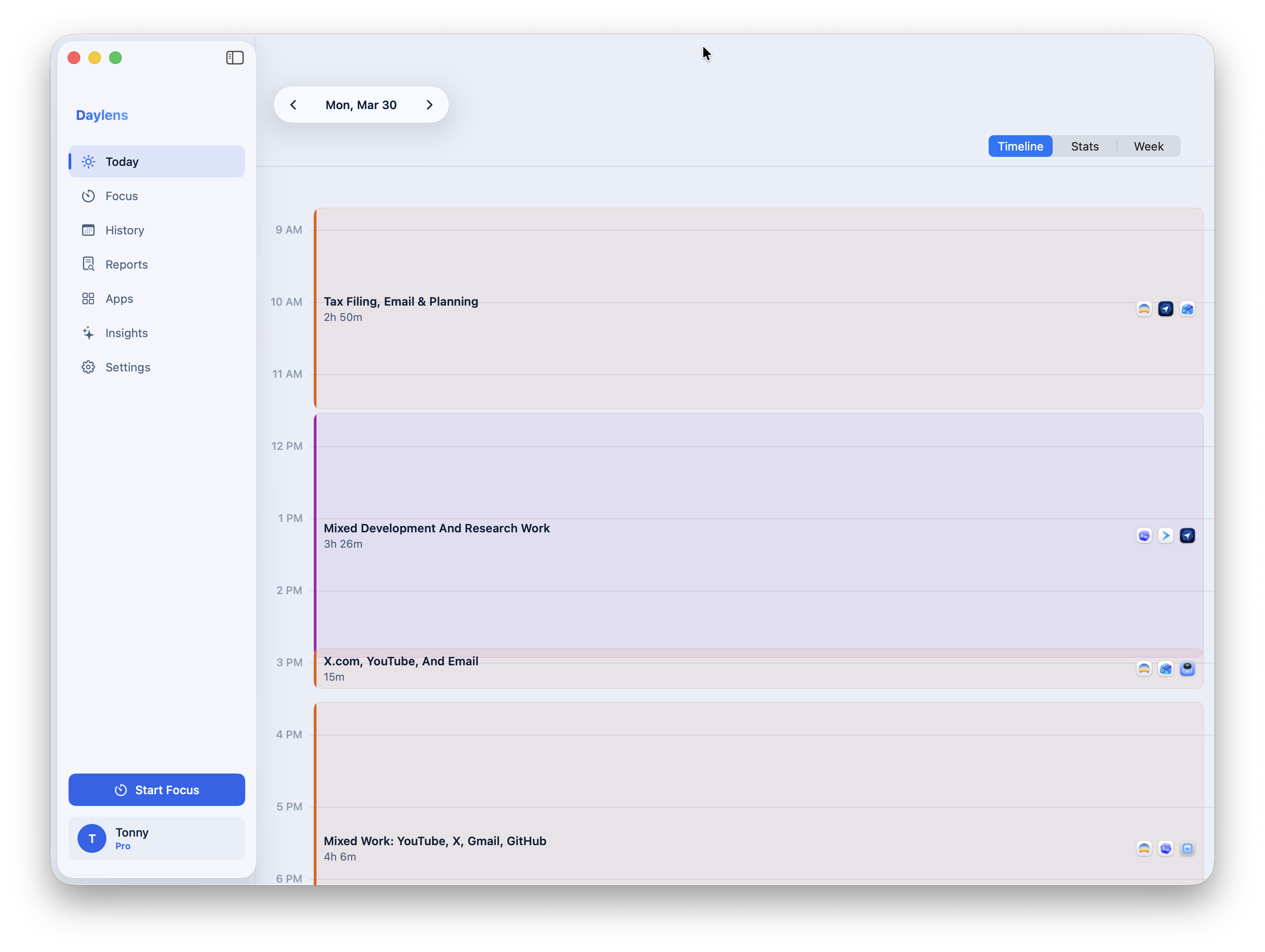
these aren't buckets you configure manually. Daylens watches what you're doing across all your apps and browser tabs, detects when the work shifts, and groups the activity into sessions with descriptive names. "Tax Filing and Email." "Mixed Development." "Mixed Work." the names reflect what actually happened, not a category someone assigned ahead of time.
you can navigate to any past day. the timeline is always there.
session detail
click on any block in the timeline and you get the full picture of what happened inside it.
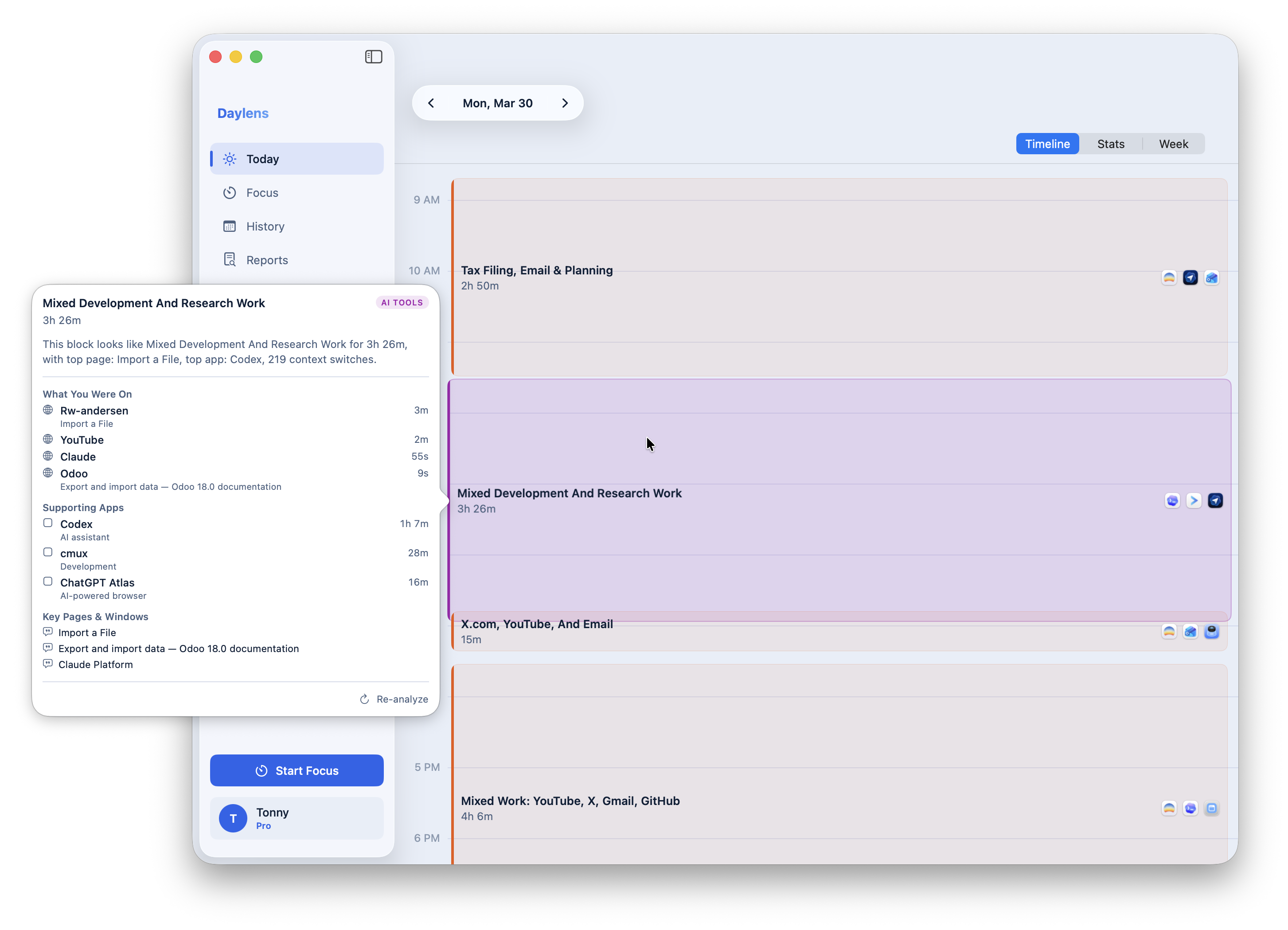
every page that was open, time spent on each, which apps were running alongside, and how many times you switched contexts. 219 context switches in one session, in my case. the AI analysis tag means this breakdown was generated automatically, not by manual categorization.
this is the part no other tool gets right. not "VS Code was open for 3 hours" but what you were actually doing inside those 3 hours.
stats view
the stats view translates your day into numbers.
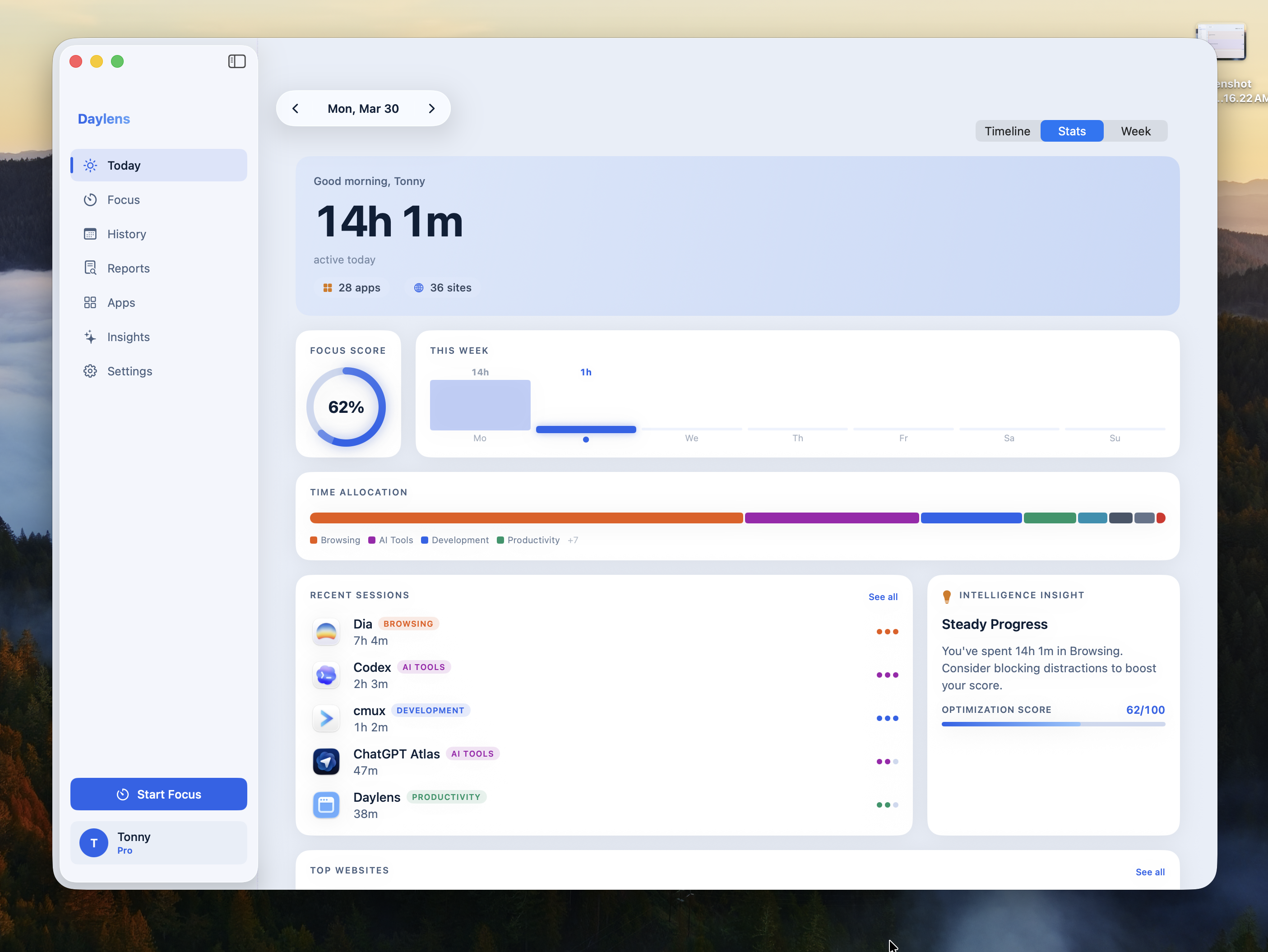
the focus score is calculated from your own switching behavior relative to your own history. it's not a universal benchmark. a 62% focus day for you might look different than a 62% for someone else. the score moves based on how fragmented your attention was compared to your own average.
the time allocation bar shows how your day split across categories at a glance.
the intelligence insight reads your actual data and surfaces the one thing worth knowing that day. it's not pulling from a library of generic tips. it's reading your data and generating something specific to what happened.
AI analysis
every session in the timeline gets analyzed automatically.
this runs without you doing anything. no prompt, no button. when Daylens groups a session, the AI goes through what happened and writes a description of the actual work. the session names themselves come from this analysis. "Mixed Development And Research Work" wasn't typed by you. Daylens read the activity and named it.
the analysis understands which tools were primary versus supporting, which sites were the focus versus background noise, and how context switches mapped to different tasks within the session.
insights: ask questions about your week
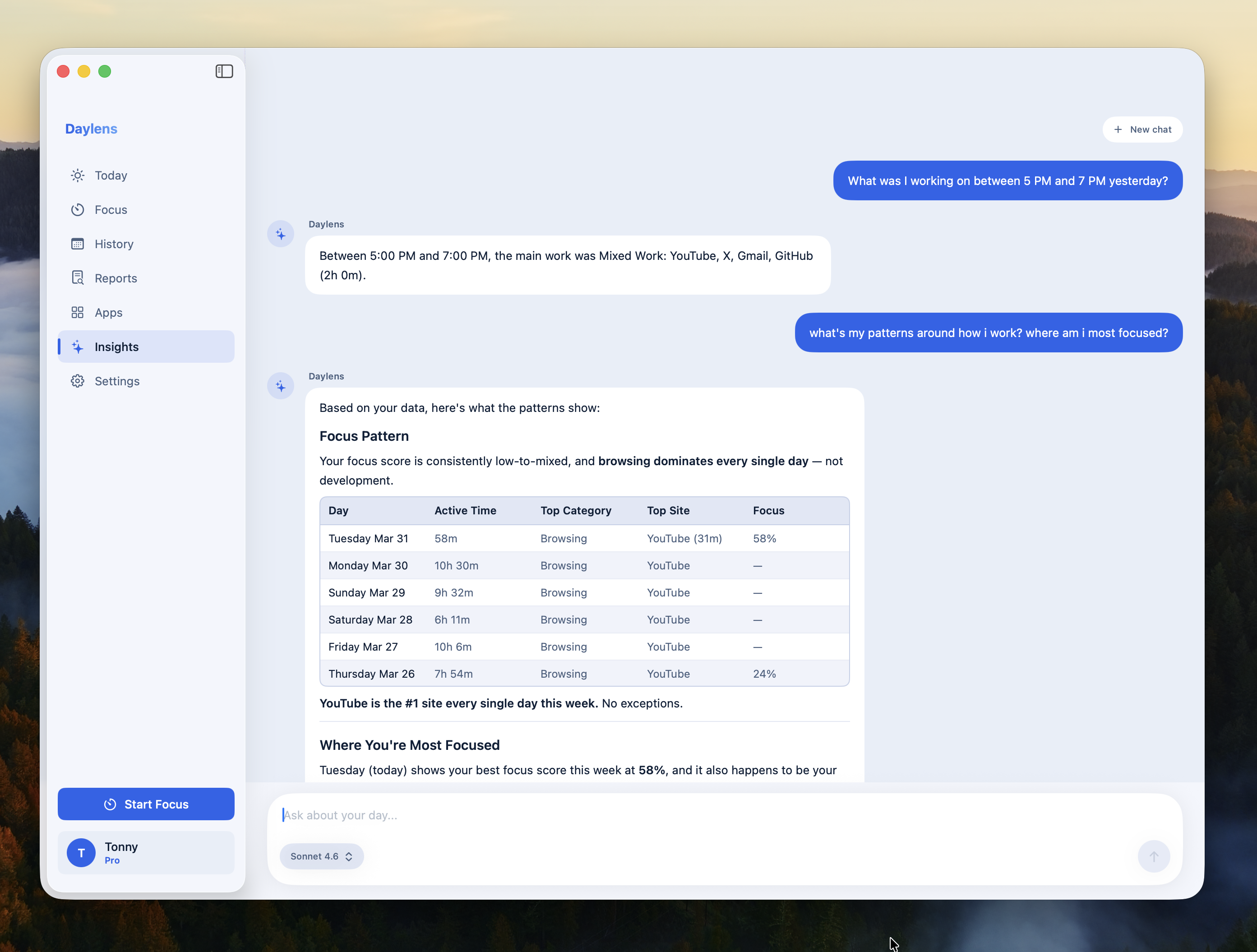
the Insights tab is a chat interface that already has all your data. you can ask questions in plain language across any timeframe.
- what was I doing Thursday afternoon?
- where did my focus go this week?
- which days did I have the most context switches?
- what was I researching on Wednesday?
the answers are grounded in your actual activity, not generated from memory. follow-up questions work. the conversation builds on itself.
reports
Daylens generates daily and weekly reports automatically. the weekly review summarizes your patterns across the full week: focus trends, where time went, what shifted compared to previous weeks. the reports are readable in the app or exportable.
web companion
the web companion lets you view your data from any device.
connect your desktop app once using a QR code from Settings. no email, no password. once connected, you can check your dashboard, browse history, and chat with AI about your habits from your phone or any browser.
all data still originates on your machine. the web companion reads what the desktop app syncs. nothing is stored on a server independently of you.
privacy and data
everything Daylens records stays on your device by default. no telemetry, no usage analytics, no screenshots, no keylogging. the app watches window titles and browser tab titles, which is enough to understand what you're working on without capturing what you're typing or seeing.
the web companion sync uses end-to-end encryption. your recovery phrase is the only key. Daylens doesn't hold it.
the whole thing is open source. you can read every line of what it does.
getting started
- download Daylens for macOS or Windows
- open the app and let it run in the background
- check your timeline at the end of the day
there's no configuration required to get value from it. the tracking starts immediately. the AI analysis runs on sessions as they're completed. by the end of your first day you'll have a labeled timeline with focus scores and session breakdowns.
the web companion is optional. if you want to check your data from your phone, go to Settings, tap Connect to Web, and scan the QR code.
that's everything. free, open source, and i'd love to hear what you think.
CT